
For small + mid-size importers
Add your bank info for CBP ACH refunds
Enter your U.S. bank routing and account number in ACE so CBP can direct-deposit your refund via ACH EFT — required under Executive Order #14247.
- Time:
- 10–15 minutes
- Source:
- CBP Quick Reference Card: 'ACH Bank Information for Electronic Refunds' (Publication No. 5292-1225, December 2025).
Before you start
An ACE Secure Data Portal account with an importer sub-account view tied to your IR#. If you don't have one, start with Sign up for an ACE Portal account.
Your Trade Account Owner (TAO) credentials, OR Full Access permission on the ACH refund tab granted to you by your TAO (as a Proxy Trade Account Owner or Trade Account User).
Your U.S. bank routing number (ABA, 9 digits) and bank account number (up to 17 digits) — account must be in the Importer of Record's name.
Know your account type (Checking or Savings) for the Bank Control Key field.
Log in to the ACE Portal
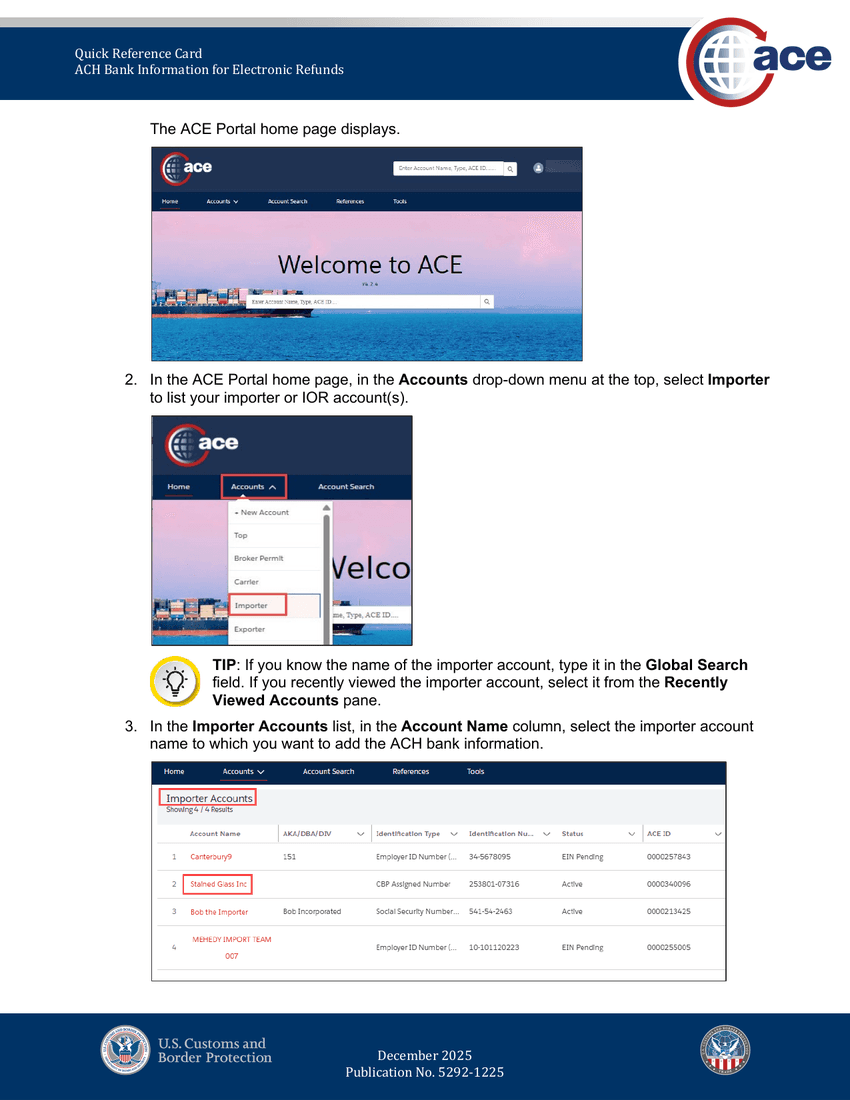
Source: CBP QRC Pub. 5292-1225, December 2025 — page 6 (user-access permissions + ACE login). Go to https://ace.cbp.gov and log in with your TAO credentials (or a user who has Full Access to the ACH refund tab).
The ACE Portal home page displays with the top navigation: Home, Accounts, Account Search, References, Tools.
Note:Not a TAO? Your TAO needs to grant you Full Access on the ACH refund tab first: Tools → User Access → your name → Roles → expand Importer → Edit → set ACH refund tab to Full Access → Submit. Full Access authorizes viewing, adding, and editing; Read-Only authorizes viewing only.
Open your Importer account
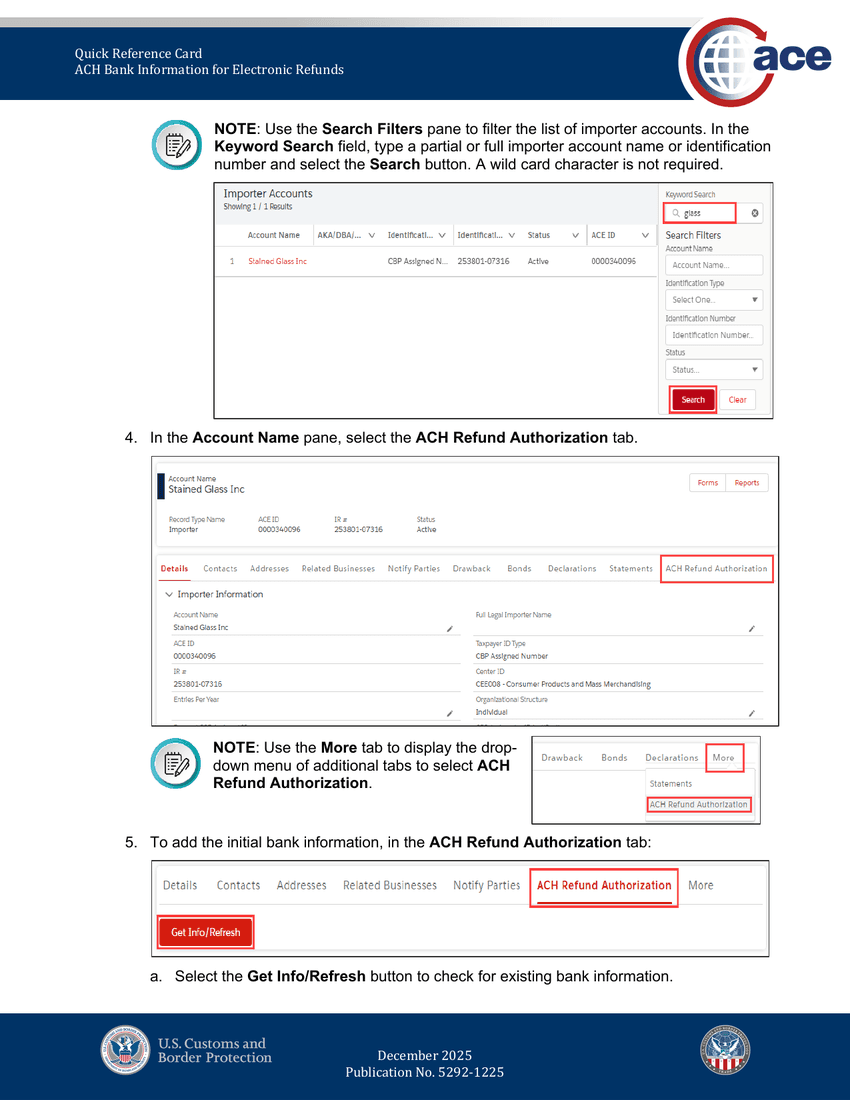
Source: CBP QRC Pub. 5292-1225, December 2025 — page 7 (navigate to Importer Account). In the top navigation, click Accounts → Importer to list your importer or IOR account(s). Click the importer Account Name for the IR# you're enrolling.
If you know the account, you can also type it into the Global Search field on the home page, or use Recently Viewed Accounts in the sidebar. The Search Filters pane (keyword search, account name, identification type/number, status) works when you have many importer accounts under one top account.
Click the ACH Refund Authorization tab
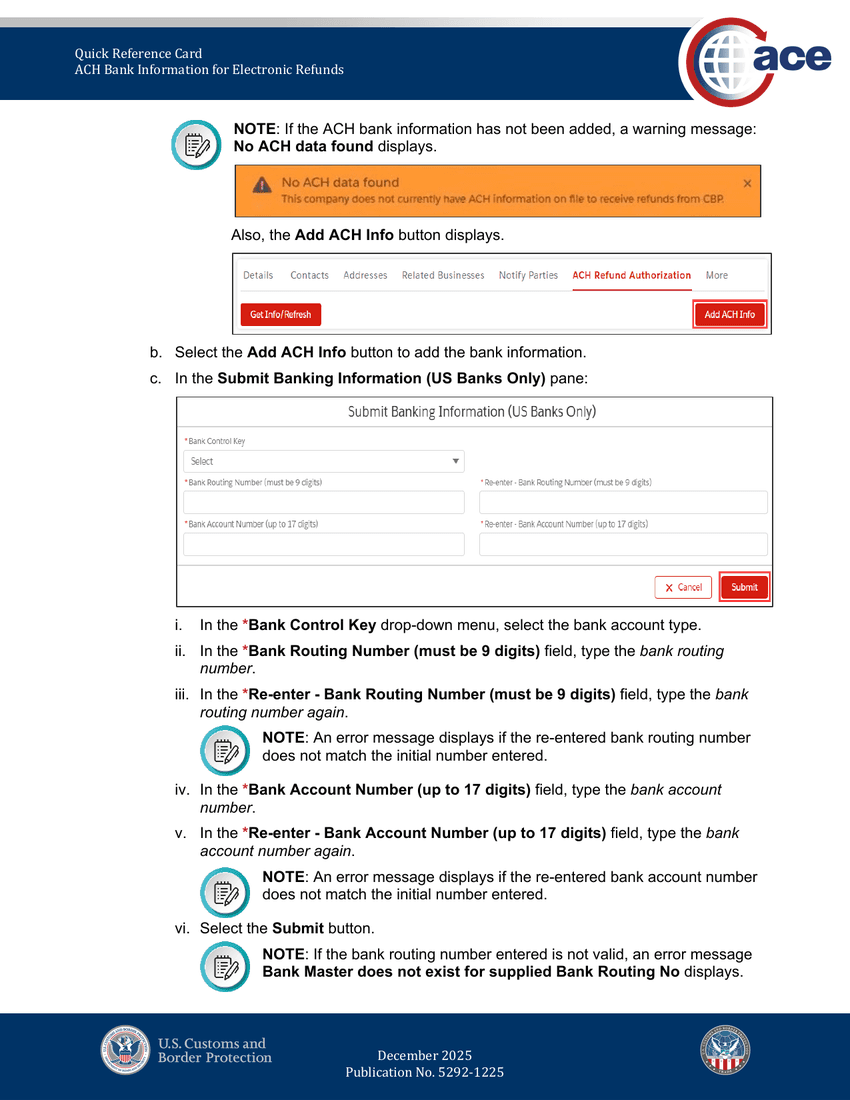
Source: CBP QRC Pub. 5292-1225, December 2025 — page 8 (ACH Refund Authorization tab + Add ACH Info). The Account Name pane opens with tabs across the top: Details, Contacts, Addresses, Related Businesses, Notify Parties, Drawback, Bonds, Declarations, Statements, ACH Refund Authorization.
Click ACH Refund Authorization. On narrow screens the tab collapses under a More dropdown — expand it and select ACH Refund Authorization from there.
In the tab, click Get Info/Refresh to check whether bank info already exists. If it doesn't, a yellow warning banner appears: *'No ACH data found — This company does not currently have ACH information on file to receive refunds from CBP.'* An Add ACH Info button appears next to Get Info/Refresh.
Submit your banking info
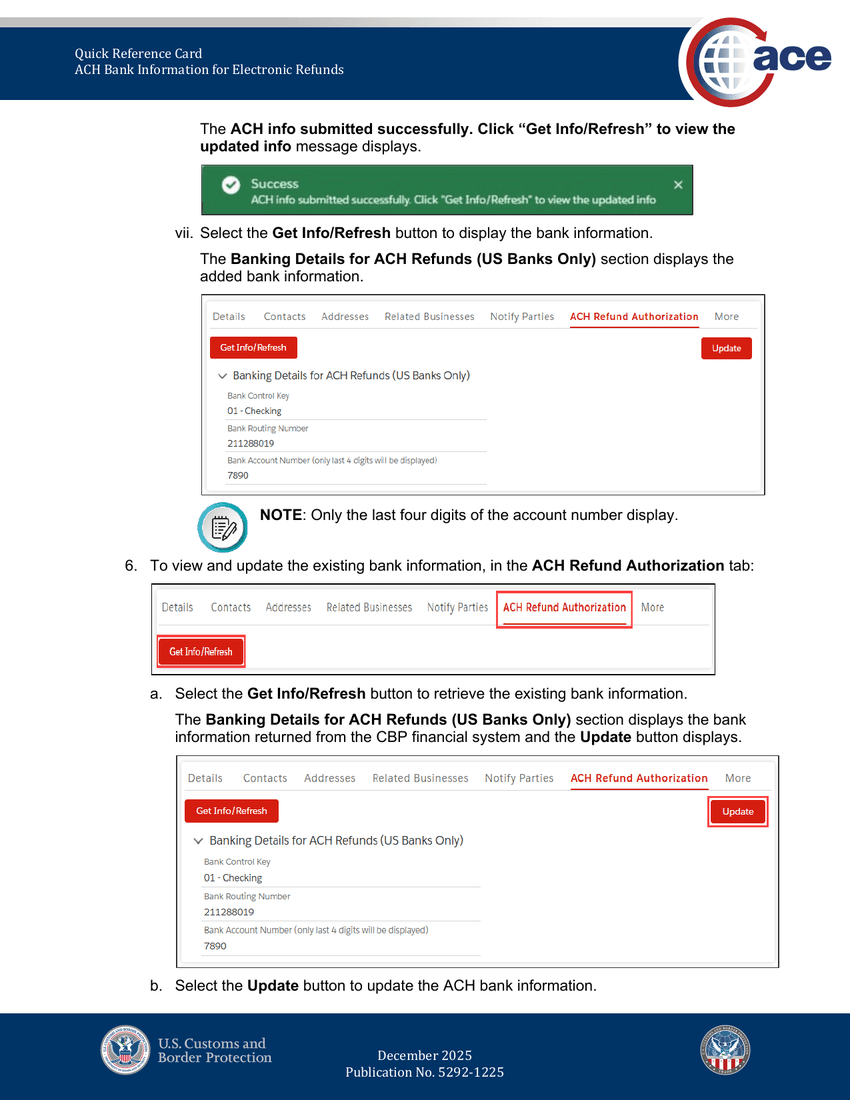
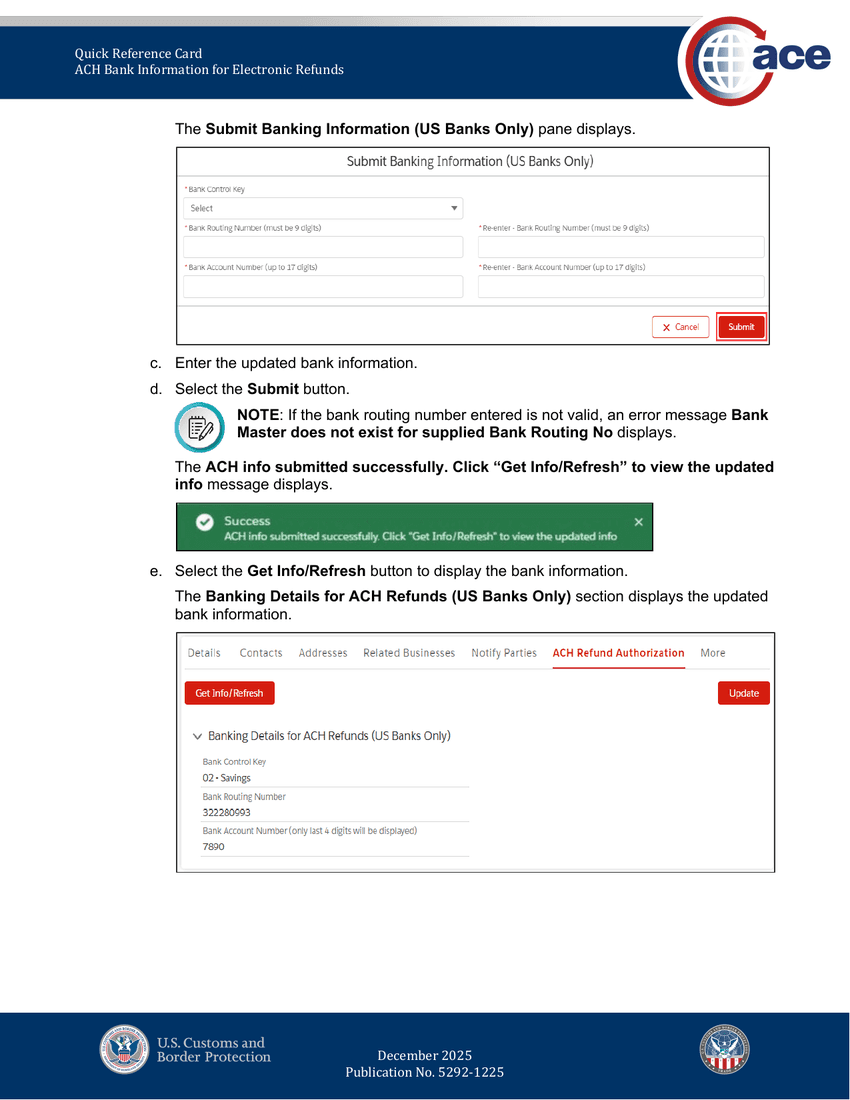
Source: CBP QRC Pub. 5292-1225, December 2025 — page 9 (Submit Banking Information form + success). Click Add ACH Info. The Submit Banking Information (US Banks Only) form opens with five fields:
- *Bank Control Key* — dropdown, select your account type (for checking the value is usually 01 - Checking; savings is 02 - Savings).
- *Bank Routing Number (must be 9 digits)* — your bank's ABA routing number.
- *Re-enter - Bank Routing Number* — type it again; the form errors if the two don't match.
- *Bank Account Number (up to 17 digits)* — the account where you want CBP to deposit refunds.
- *Re-enter - Bank Account Number* — type it again; same mismatch check.
Click Submit.
Heads up:If the routing number is invalid, the form returns *'Bank Master does not exist for supplied Bank Routing No'*. Double-check the 9-digit ABA with your bank — the banking details aren't stored in ACE (they're kept in CBP's financial system), so typos cost you a retry cycle.
Confirm the banking details display
On success the ACH info submitted successfully. Click 'Get Info/Refresh' to view the updated info toast appears. Click Get Info/Refresh — the Banking Details for ACH Refunds (US Banks Only) section displays:
- Bank Control Key (e.g. `01 - Checking`)
- Bank Routing Number (full 9 digits)
- Bank Account Number (only the last 4 digits display for security)
Reply to your intake email (or open the chat widget) with "ACH authorized" so we log it on your claim file. When CBP issues the refund decision, Treasury typically ACHs to your account within 1–3 business days of the allow.
To update banking info later
Source: CBP QRC Pub. 5292-1225, December 2025 — page 10 (update existing banking info). If you change banks, come back to the same ACH Refund Authorization tab:
- Click Get Info/Refresh to load your existing info — an Update button appears.
- Click Update. The Submit Banking Information form opens again (empty — you re-enter everything).
- Enter the new Bank Control Key, routing number (×2), and account number (×2).
- Click Submit. On success, click Get Info/Refresh to see the updated Banking Details section.
Only a user with Full Access on the ACH refund tab can submit updates; Read-Only users can view but not change.
Note:Want to monitor refunds? CBP's REV-603 Trade Refund Report lists successful refunds; REV-613 ACH Rejected Refunds Report lists refunds that bounced because the recipient wasn't enrolled. Both live under Reports in the ACE Portal.
Still stuck?
The support widget (bottom-right) can answer follow-up questions in context, or email support@tariffi.io. Replies within one business day.