
For small + mid-size importers
Sign up for an ACE Portal account (importer)
Get your company an ACE Secure Data Portal account with importer sub-account view — the prerequisite for entering bank info so CBP can pay your refund.
- Time:
- 20–30 minutes (plus email coordination with your 5106 POC)
- Source:
- CBP Quick Reference Card: 'Automated ACE Portal Account Application for Importers' (Publication No. 5228-1025, October 2025).
Before you start
Your company's Importer Record Number (IR#) — usually your 9-digit EIN, a CBP-assigned number, or a 9-digit SSN for sole proprietors.
Access to the email address on your CBP Form 5106 as the Importer Record Point of Contact (POC). A verification code is sent there, valid for 10 minutes only.
If the 5106 POC email is out of date, coordinate with your customs broker before starting — they can update it digitally through ACE ('TF' in the Importer Create/Update transaction) or via a paper Form 5106 (box 2E). Do not use the broker's email as the POC address.
Confirm your 5106 POC email is current
Per Executive Order #14247 (March 25, 2025 — *Modernizing Payments To and From America's Bank Account*), CBP must pay all refunds via ACH EFT. To enroll for ACH refunds you first need an ACE Portal account, and the account-creation flow authenticates you against the email on your Form 5106 Importer Record. If you're unsure whether the address is current, coordinate with the POC (or your broker) before continuing — the verification code the portal sends expires in 10 minutes.
Heads up:If the 5106 POC email is wrong and no one responds within 10 minutes, the whole application restarts from scratch. Line up the POC in advance.
Open the CBP application page
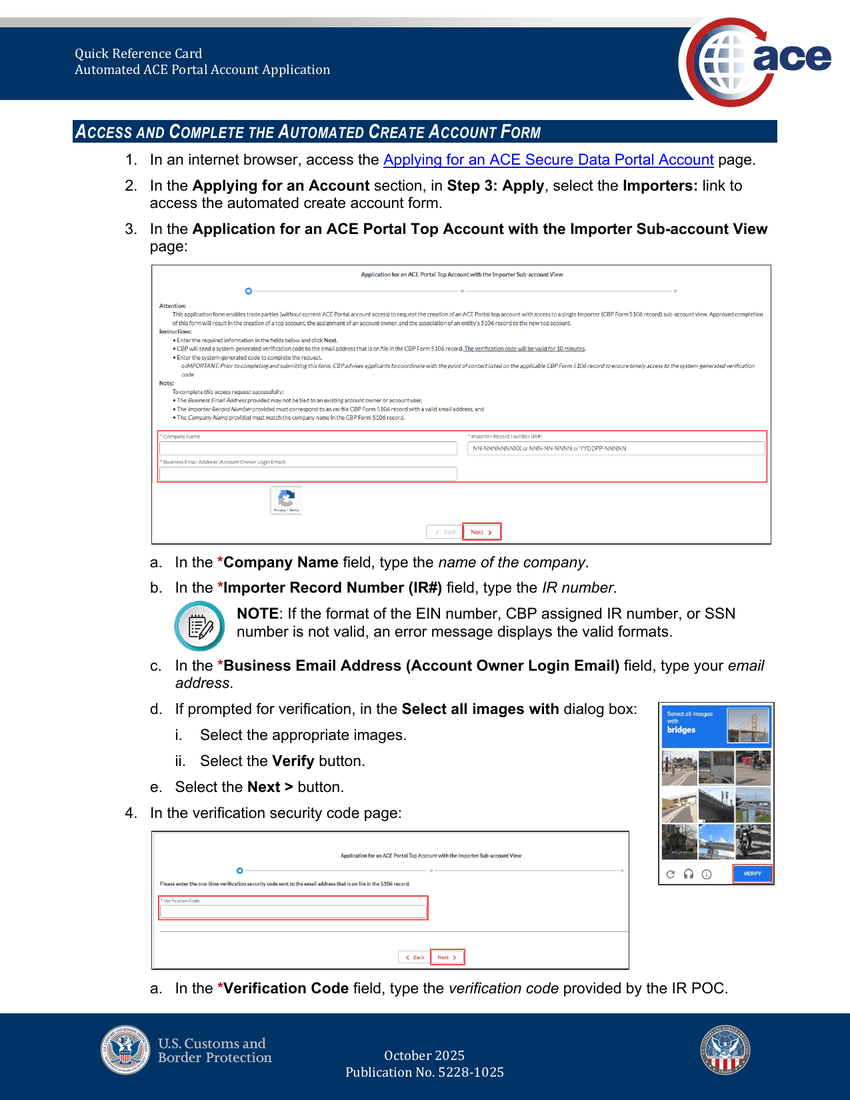
Source: CBP QRC Pub. 5228-1025, October 2025 — page 3 (form page 1). Go to the CBP page titled 'Applying for an ACE Secure Data Portal Account' on cbp.gov. In the Applying for an Account section, under Step 3: Apply, click the Importers: link. That opens the automated create-account form in a new tab.
Fill in Company Name, IR#, and Business Email
On the first form page:
- Company Name — must match the company name on your CBP Form 5106 record exactly.
- Importer Record Number (IR#) — the EIN (NN-NNNNNNN), CBP-assigned number (NNNN-NN-NNNN), or SSN (YYY/DDPP-NNNNNN) format on your 5106.
- Business Email Address (Account Owner Login Email) — the address that will become your ACE login. Must not already be tied to an existing ACE trade-user account.
- If prompted, complete the Select all images with [bridges/crosswalks/etc.] reCAPTCHA and click Verify.
- Click Next >.
Note:The email you enter here is the login you'll use going forward. Pick an address you monitor — CBP also sends ACE account notifications to it.
Enter the verification code within 10 minutes
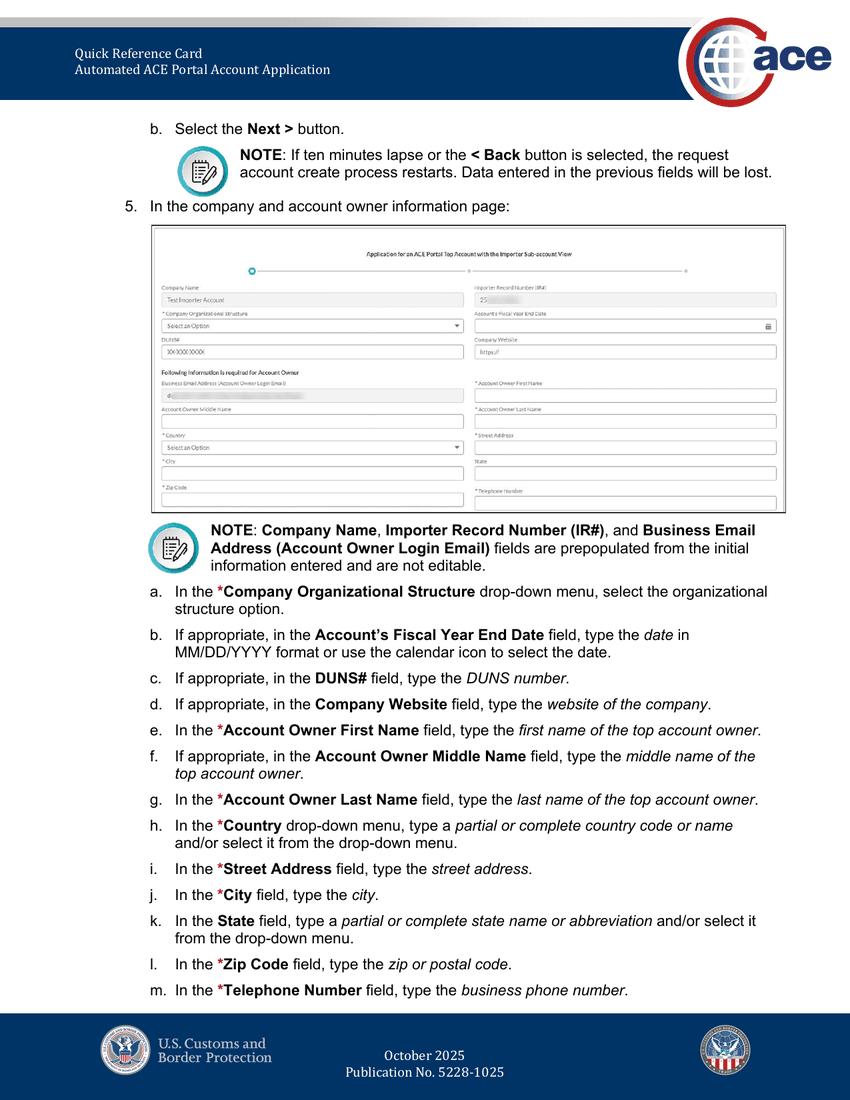
Source: CBP QRC Pub. 5228-1025, October 2025 — page 4 (verification + company info form). CBP sends a one-time verification code to the POC email on your 5106 record. The IR POC must forward the code to you — the code is valid for 10 minutes and then expires.
Type the code into the Verification Code field and click Next >. If ten minutes lapse or you click the < Back button, the whole form resets and you start over.
Fill in company + account owner details
Company Name, IR#, and Business Email are prefilled and not editable (they came from step 3). Complete the rest:
- Company Organizational Structure (dropdown — pick the matching entity type).
- Account's Fiscal Year End Date (MM/DD/YYYY format, optional but useful).
- DUNS# (optional).
- Company Website (optional).
- Account Owner First Name, Last Name, optionally Middle Name.
- Country (dropdown).
- Street Address, City, State (dropdown), Zip Code, Telephone Number (include a dash to separate parts, e.g. 212-555-0100).
Click Next >.
Sign the authorization and submit
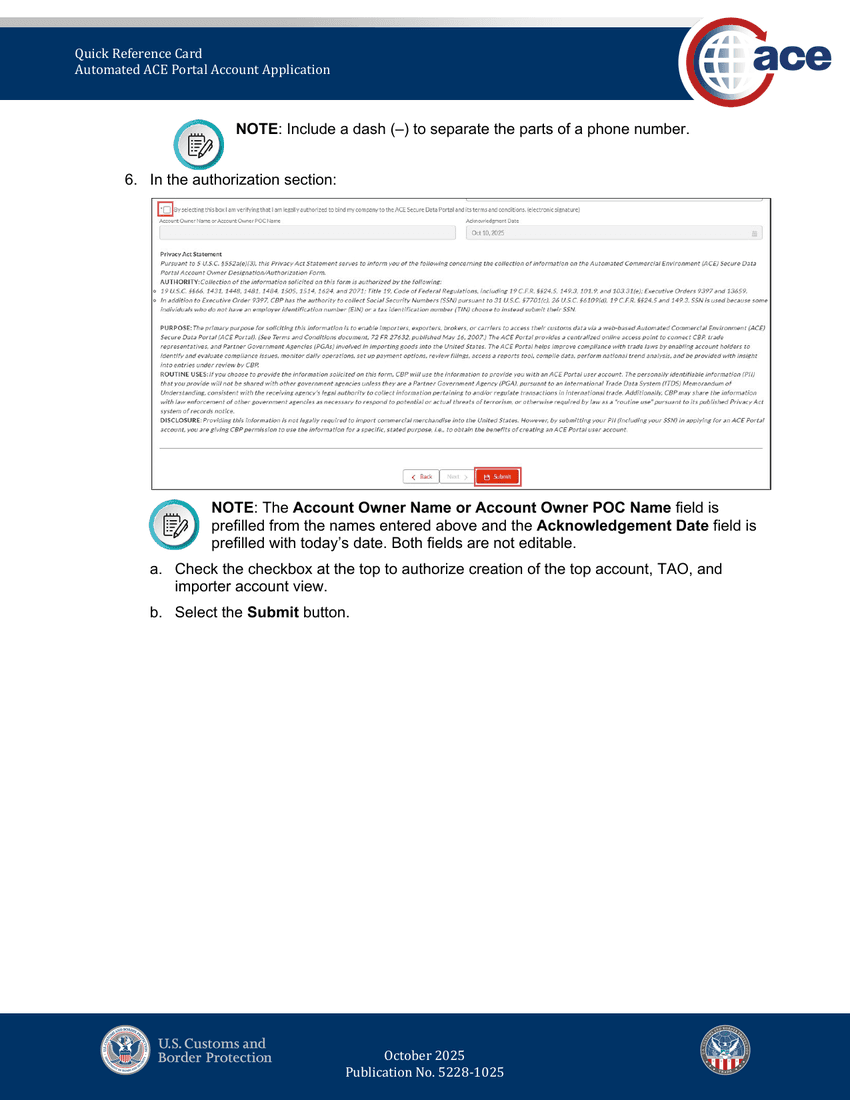
Source: CBP QRC Pub. 5228-1025, October 2025 — page 5 (authorization + submit). The authorization section displays the Privacy Act Statement, purpose, routine uses, and disclosure terms under the 1974 Privacy Act. The Account Owner Name and Acknowledgement Date are prefilled.
- Check the authorization box at the top ("By selecting this box I am verifying that I am legally authorized to bind my company to the ACE Secure Data Portal and its terms and conditions. (electronic signature)").
- Click Submit.
CBP creates your top account, assigns you the Trade Account Owner (TAO) role, and provisions the importer sub-account view for your IR#.
Check your email — you're ready for bank info next
CBP sends two emails: (1) confirmation that your importer view access request was processed, and (2) user info + directions to access the ACE Portal. Once you can log in, move on to our next guide — Add your bank info for CBP ACH refunds — to finish enrollment.
Reference: the official ACE Portal Account Types User Guide covers first-time login and portal navigation in detail; link is on the CBP Training and Reference Guides page.
Still stuck?
The support widget (bottom-right) can answer follow-up questions in context, or email support@tariffi.io. Replies within one business day.